FH6 Best Settings Guide — Controller, Racing Wheel, Difficulty & FPS Optimization
FH6 Best Settings Guide — Controller, Wheel, Difficulty & FPS
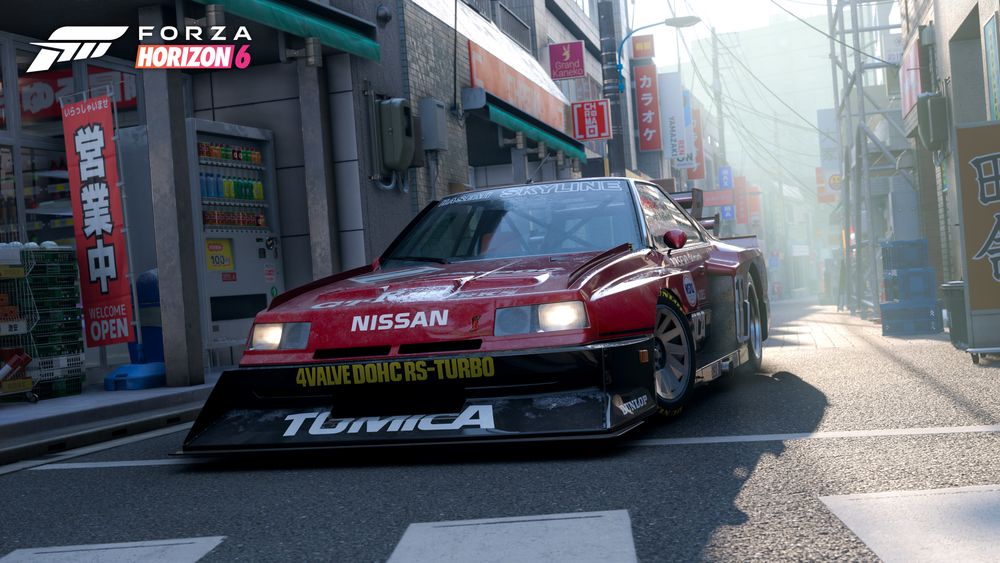
Forza Horizon 6's default settings are conservative. Changing just a handful of them transforms how the game feels, how many credits you earn, and how fast it runs. Here's every setting worth changing.
Difficulty Settings — Maximize Your Credits
Your difficulty settings directly affect your credit multiplier per race. Higher difficulty = more credits.
| Setting | Recommended | Credit Bonus | Why |
|---|---|---|---|
| Drivatar Difficulty | Expert or Pro | +15-25% | Expert is the sweet spot. Unbeatable AI cheats on straights. |
| Driving Line | Braking Only | +5% | Full line distracts. Braking Only tells you what matters. |
| Damage & Tire Wear | Cosmetic | +0% | Simulation damage is not worth the credits. |
| Rewind | On | No penalty | Rewind has no credit penalty in FH6. Keep it on. |
| Traction Control | OFF | +10% | TC cuts power when wheels spin — exactly when you need it most. |
| Stability Control | OFF | +10% | Same. You want full control of the car. |
| Shifting | Manual | +10% | Manual shifting = full power band control. Worth learning. |
| ABS | ON (beginners) / OFF (advanced) | +5% for OFF | ABS ON is fine for 90% of driving. Turn OFF for drifting. |
Maximum credit bonus: +125% with all assists off and Unbeatable AI. Realistic sweet spot: Expert, Manual, TCS off, STM off = ~+70%.
Controller Settings
These settings are tuned for competitive play on Xbox or PC with a standard controller.
Controller Layout
| Setting | Value |
|---|---|
| Layout | Default (or Custom — remap handbrake to A/X) |
| Swap Anna / Telemetry | Personal preference |
| Switch Anna / Drone / Telemetry | Drone (↑ D-pad makes drone mode accessible) |
Advanced Controller Settings
| Setting | Value | Why |
|---|---|---|
| Steering Axis Deadzone Inside | 0-3 | Lower = more responsive. Set as low as possible without stick drift. |
| Steering Axis Deadzone Outside | 95-100 | Higher = full steering range available. |
| Steering Linearity | 50 | Default is fine. Lower = twitchier, higher = smoother. |
| Acceleration Axis Deadzone Inside | 0-5 | Lower for quicker throttle response. |
| Acceleration Axis Deadzone Outside | 95-100 | Full throttle range. |
| Deceleration Axis Deadzone Inside | 0-5 | Braking responsiveness. |
| Deceleration Axis Deadzone Outside | 95-100 | Full brake range. |
| Clutch Axis Deadzone Inside | 10-15 | Only relevant if using Manual w/ Clutch. |
| Clutch Axis Deadzone Outside | 90-100 | — |
| Handbrake Axis Deadzone Inside | 10-15 | Prevents accidental handbrake taps. |
| Handbrake Axis Deadzone Outside | 90-100 | — |
| Vibration | On | Personal preference, but vibration helps feel grip loss. |
Racing Wheel Settings
Based on HokiHoshi's in-depth wheel guide (211K subs, 33K views on FH6 wheel settings) and community testing across Logitech, Thrustmaster, and Moza wheels.
Wheel Rotation
| Use Case | Degrees |
|---|---|
| Road Racing / General | 900° |
| Drifting | 540-720° |
| Rally / Dirt | 720-900° |
| Formula / Track | 360-540° |
FH6 supports up to 900° on most wheels. Set this in your wheel's driver software, not just in-game.
Force Feedback Settings
| Setting | Value | Notes |
|---|---|---|
| Force Feedback Scale | 0.7-0.9 | Lower than default (1.0). Prevents violent oscillation on straights. |
| FFB Minimum Force | 0.4-0.6 | Adds weight to the wheel at center. Higher for heavier cars. |
| Center Spring Scale | 0.3-0.5 | Controls wheel return-to-center. Too high = feels like a rubber band. |
| Wheel Damper Scale | 0.2-0.4 | Adds resistance. Too high = sluggish. |
| Steering Sensitivity | 0.4-0.5 | How quickly the in-game wheel matches your physical wheel. |
| Steering Linearity | 0.4-0.5 | Lower = more precise near center. Higher = more linear. |
| Road Feel Scale | 0.5-0.8 | Bumps, curbs, surface texture. Higher = more immersion. |
| Load Sensitivity | 0.4-0.6 | Weight transfer feel. Higher = more FFB under braking/cornering. |
Wheel-Specific Tips
| Brand | Tip |
|---|---|
| Logitech (G920/G923/G Pro) | Set rotation to 900° in G Hub. Lower FFB scale to 0.7 — Logitech wheels oscillate at high FFB. |
| Thrustmaster (TX/T300/TS-XW) | Enable "Forced Cooling" in driver to prevent FFB fade during long sessions. Rotation 900°. |
| Moza (R5/R9/R12) | Use Moza Pit House to set rotation. Enable "Hands-Off Protection." FH6's FFB is tuned well for DD wheels out of the box. |
| Fanatec (CSL DD/DD Pro) | Set SEN to 900. Lower NDP (Natural Damper) to 10-15. |
Steering Setting
Always use Simulation steering on a wheel. "Standard" steering limits your steering angle and masks mistakes. Simulation gives you full car control — essential for drifting and precise cornering.
Driving Assists — What to Turn Off
| Assist | Keep ON? | Why |
|---|---|---|
| Traction Control | OFF | Cuts power mid-corner. You'll be slower everywhere. |
| Stability Control | OFF | Fights sideways movement. Makes drifting impossible, slows corner exits. |
| ABS | ON (most driving) / OFF (drifting) | ON is fine. OFF gives more brake control for trail braking and drifting. |
| Auto-Steering | OFF | It's not assisted steering — it's the game driving for you. |
| Auto-Braking | OFF | Same. Only useful for AFK farming. |
PC Graphics Settings — Max FPS for Every GPU Tier
Based on the r/OptimizedGaming community testing (218 upvotes) and IGN's PC settings analysis on RTX 5070.
Priority Settings — Change These First
These settings have the biggest FPS impact. Lower these if you need frames:
- Ray Tracing Quality — Turn OFF for mid-range GPUs. Massive FPS hit.
- Shadows — High → Medium. Big FPS gain, small visual loss.
- Volumetric Fog — Medium → Low. Noticeable FPS gain in foggy/rainy Japan.
- Car Level of Detail — Ultra is fine on most GPUs. Leave it.
Recommended Configs by GPU Tier
High-End (RTX 4080/4090, RX 7900 XTX)
| Setting | Value |
|---|---|
| Resolution | 4K Native or DLSS Quality |
| Ray Tracing | High |
| Everything Else | Ultra / Extreme |
| Target | 4K 60-120 FPS |
Mid-Range (RTX 3070/4070/5070, RX 6800/7800 XT)
| Setting | Value |
|---|---|
| Resolution | 1440p or 4K DLSS Balanced |
| Ray Tracing | Medium or OFF |
| Shadows | High |
| Environment Texture | Ultra |
| Volumetric Fog | Medium |
| SSR Quality | High |
| Target | 1440p 80-120 FPS / 4K 60 FPS |
Budget (RTX 2060/3060, RX 6600, Steam Deck, ROG Ally)
| Setting | Value |
|---|---|
| Resolution | 1080p or 720p (handheld) |
| Ray Tracing | OFF |
| Shadows | Medium |
| Environment Texture | Medium |
| Volumetric Fog | Low |
| SSR Quality | Low or OFF |
| DLSS/FSR | Quality or Balanced |
| Target | 1080p 60 FPS / 720p 40-60 FPS |
Upscaling Choice
| GPU | Best Upscaler |
|---|---|
| NVIDIA RTX | DLSS (Quality or Balanced) |
| AMD RX 6000/7000 | FSR 3 (Quality) |
| Intel Arc | XeSS (Quality) |
| Steam Deck / ROG Ally | FSR 3 (Balanced or Performance) |
Critical PC Note
FH6 will disable DLSS/FSR if you run out of VRAM. If your upscaler disappears mid-session, lower texture quality. This is a known behavior — the game prioritizes stability over features.
Audio Settings
| Setting | Value | Why |
|---|---|---|
| Master Volume | 100 | — |
| Car Volume | 100 | You need to hear your engine for shift timing |
| Tire Volume | 80-100 | Tire squeal tells you when you're at the grip limit |
| Radio | 40-60 | Personal preference. Lower if you need to hear tires/engine |
| Speech Volume | 60 | Anna and characters don't need to be loud |
| Dynamic Range | Full (headphones) / Medium (speakers) | Full gives you the widest audio range for hearing opponents |
HUD & Gameplay Settings
| Setting | Value | Why |
|---|---|---|
| Drift Camera | ON | Camera follows the car's angle when drifting. Essential for drift zones. |
| HUD Elements | All ON initially, disable as you learn | Gradually remove HUD elements for immersion once you know the game. |
| Names Over Cars | ON | Shows player names in online races. |
| Mini-Map Rotation | Fixed (personal preference) | Fixed is easier for navigation. Rotating is more immersive. |
The "Immersion" Preset
For maximum realism and immersion (not competitive):
| Setting | Value |
|---|---|
| HUD | All OFF |
| Driving Line | OFF |
| Damage | Simulation |
| Steering | Simulation |
| All Assists | OFF |
| Shifting | Manual w/ Clutch |
| Camera | Cockpit or Hood |
| Radio | OFF (just engine sound) |
This forces you to learn tracks, listen to your car, and drive by feel. It's harder, but dramatically more rewarding.
Settings tested on FH6 Series 1 (May 2026). Graphics settings assume latest NVIDIA/AMD drivers. Wheel settings based on community consensus — adjust to your personal feel. Updated: May 31, 2026.
Want to put these settings to use? Browse the FH6 Car Tier List for the best cars →